A couple of Mac desktop defaults that I like have changed with OSX Snow Leopard. The icons no longer default to a grid and the Hard Drive icon is gone. Here’s how to change it back.
Putting back the Hard Drive:
- In the Finder, choose Finder -> Preferences.
- Click the General icon on the toolbar.
- Select Hard disks in the Show these items on the desktop section.
- Close the Finder Preferences window.
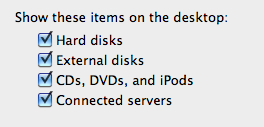
Making your icons align to a grid:
- In the Finder, choose View -> Show View Options
- Choose Snap to Grid from the Arrange by drop list.
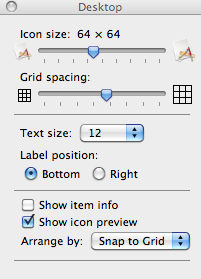 Notice that this is also where you can change the icon size, grid spacing, and text size.